
Build a Real-Time Audio Visualizer
This project captures an analog microphone signal, samples it with the ADC inside an RP2040 microcontroller, and converts the resulting data into a continuously updating waveform on a 240 × 240 TFT display. Four WS2812 RGB LEDs provide a second visual representation of the approximate signal magnitude.
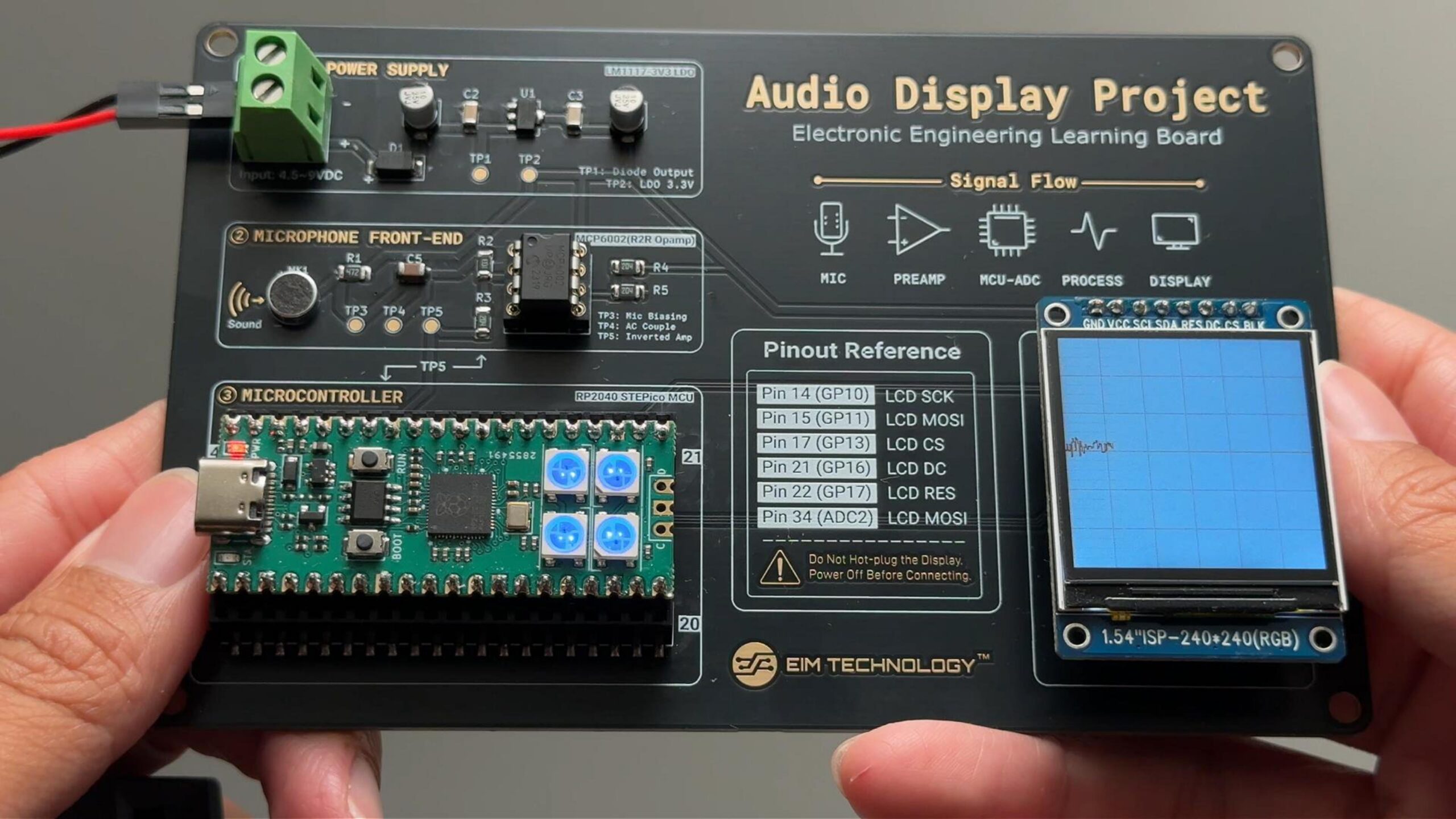 FIG. 01
From an Analog Sound Signal to a Real-Time Visual Output
The project connects analog signal acquisition, digital sampling, embedded processing, and visual output in one complete signal path. The objective is not only to produce a responsive display, but to understand how information moves through each layer of the system.
A complete real-time audio signal path.
The microphone frontend converts sound pressure into a changing analog voltage. The RP2040 reads this voltage through its ADC, converts the samples into vertical positions, and continuously draws the resulting waveform across the TFT display.
At the same time, the program estimates the magnitude of the incoming signal and uses that information to control four WS2812 RGB LEDs. Speech, a hand clap, or nearby music therefore produces two simultaneous visual responses: a waveform on the display and changing light from the LEDs.
How the System Works
Sound begins as a physical variation in air pressure. The microphone and analog frontend convert that variation into an electrical signal suitable for the microcontroller. The RP2040 then samples the signal, processes the resulting numerical data, and produces visual output through the display and RGB LEDs.
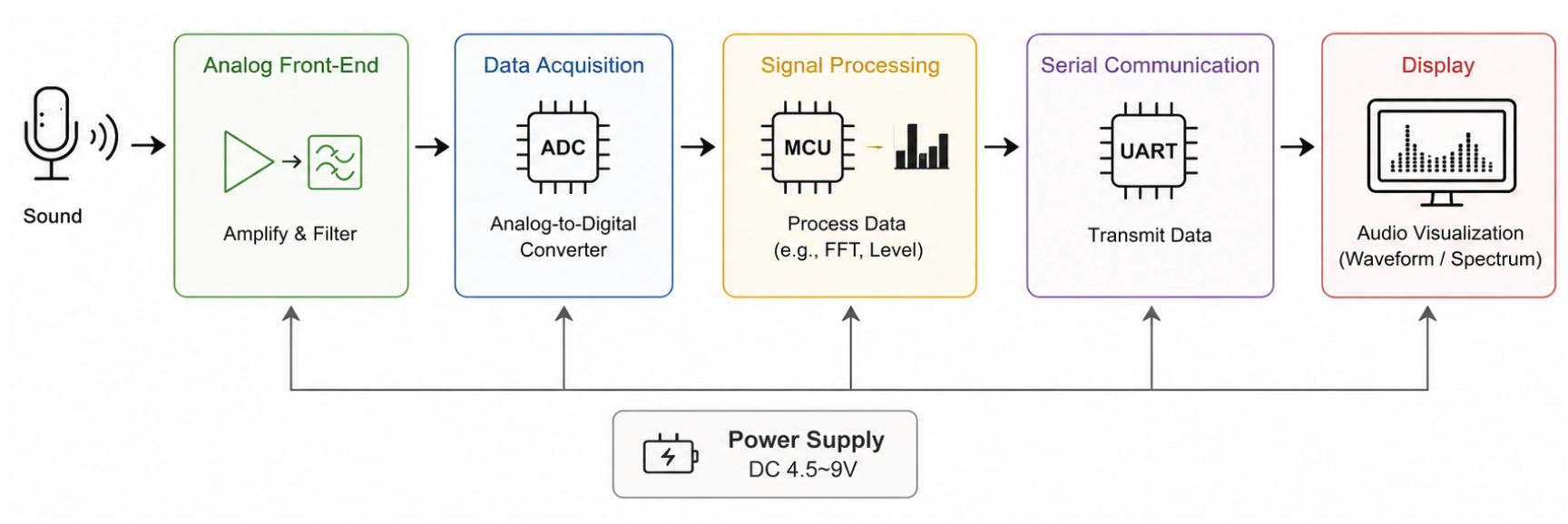 FIG. 02
Sound
Changes in air pressure provide the real-world signal entering the system.
Microphone Front-End
Converts sound into an electrical waveform and prepares it for the ADC through analog signal conditioning.
RP2040 ADC
Repeatedly measures the analog voltage and represents each measurement as numerical data.
Signal Processing
Centres, averages, scales, and maps the sampled data into values suitable for real-time visualization.
Display + RGB LEDs
Presents the measured behaviour as a moving waveform and a second light-based response.
This display is oscilloscope-style, not a calibrated oscilloscope. The vertical axis represents relative signal amplitude, while the horizontal behaviour depends on program execution and display-refresh timing rather than a calibrated timebase.
From Sound to Voltage — and Voltage to Data
Before the RP2040 can process sound in software, the physical audio signal must first be converted into an electrical waveform, conditioned for the ADC input range, and then sampled as a sequence of numerical values.
From Sound to Voltage
A microphone does not produce a digital value. It produces a small analog signal whose voltage changes with the sound around it.
The analog frontend prepares this signal for the RP2040 ADC by providing the required amplification and biasing. Because the RP2040 accepts only a positive input range, the audio waveform cannot simply swing above and below 0 V.
Instead, the waveform is shifted upward around a DC midpoint. The signal still carries the changing audio information, but now remains inside the voltage range that the ADC can measure.
Signal conditioning does not remove the audio waveform — it prepares that waveform so the digital system can measure it safely.
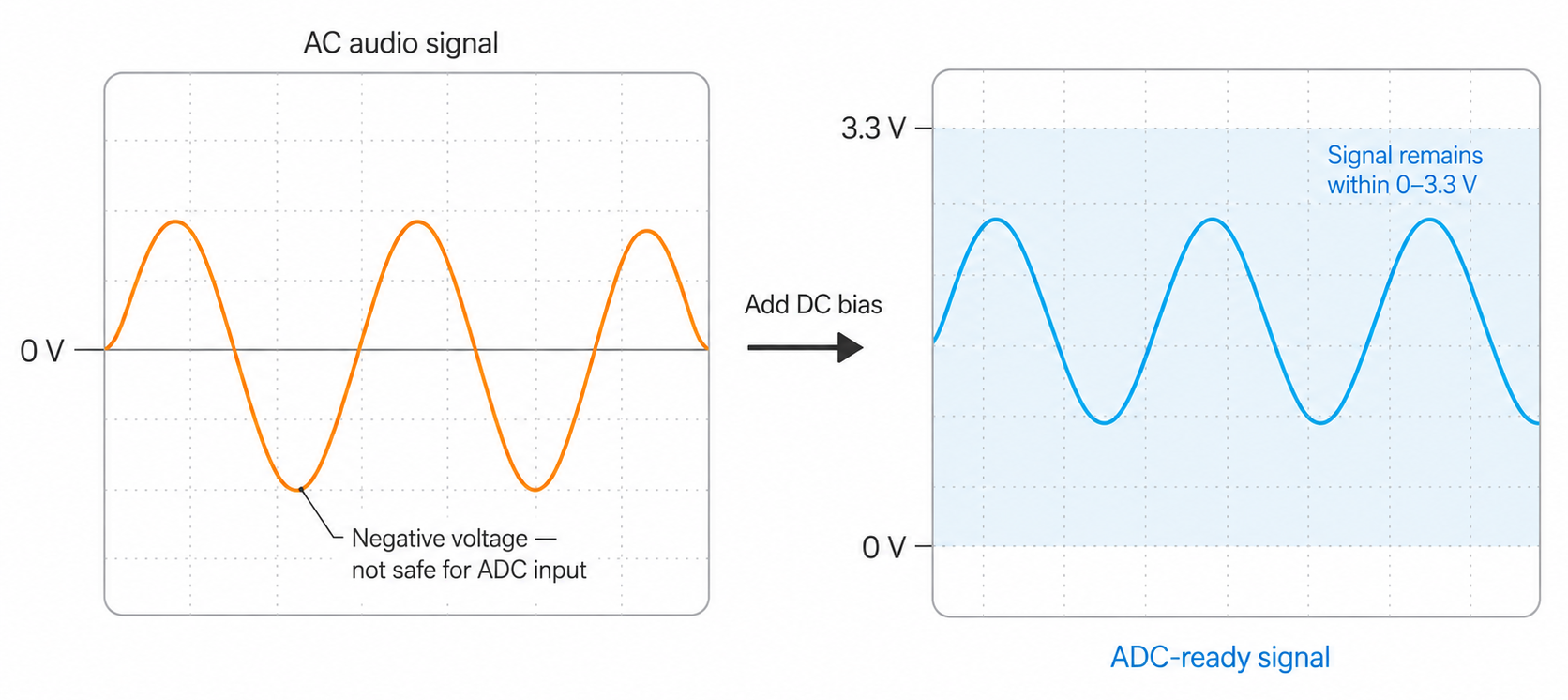 FIG. 03
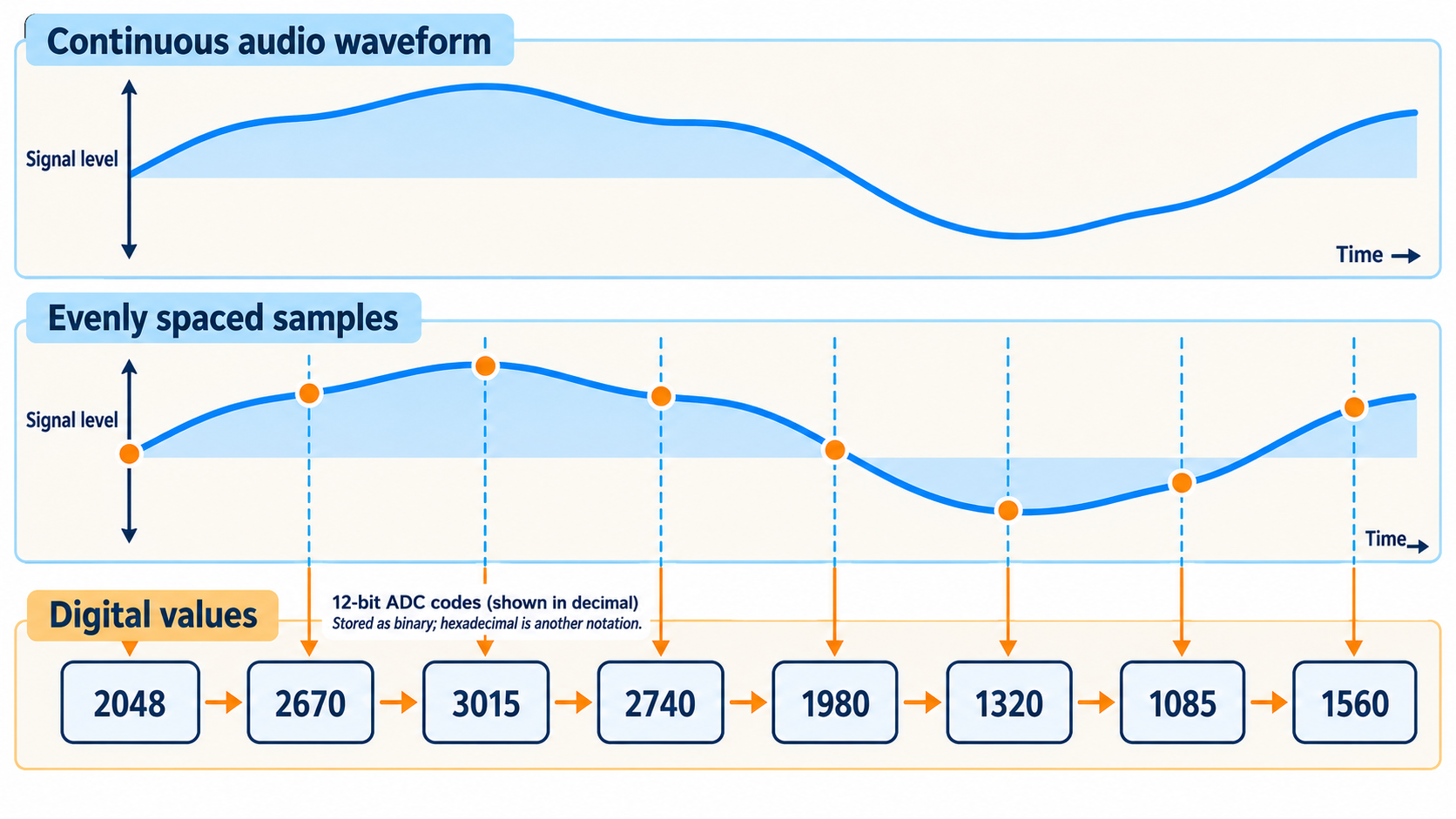 FIG. 04
From Voltage to Numbers
The ADC measures the microphone voltage repeatedly and returns
a numerical value for each measurement. In MicroPython,
read_u16() represents the ADC result on a
0–65,535 scale.
The program subtracts 32,768 so that the expected midpoint can be treated as zero. It then averages four readings to reduce small sample-to-sample variations before mapping the result onto the TFT display.
The resulting sequence of numbers is not the same thing as the original continuous waveform. Sampling speed, microphone bandwidth, display-refresh timing, electrical noise, and the program itself all influence what finally appears on the screen.
The ADC does not “see” a waveform. It repeatedly measures voltage and provides the microcontroller with numerical data.
Sound Pressure
Air-pressure variation provides the original real-world input.
Conditioned Voltage
The microphone frontend amplifies and biases the electrical waveform.
ADC Samples
Repeated voltage measurements become a stream of numerical values.
Processable Data
The RP2040 can now centre, average, scale, and visualize the samples.
The objective of this project is intuitive real-time visualization rather than precision audio measurement. The displayed waveform is affected by sampling behaviour, microphone bandwidth, noise, program execution, and TFT refresh timing. It should therefore be interpreted as a responsive view of the incoming signal, not as a calibrated measurement instrument.
Turning ADC Samples into a Live Visual Response
Once the microphone signal has been converted into numerical samples, the RP2040 must repeatedly read, process, scale, and visualize those values. The software therefore operates as a continuous loop rather than as a one-time calculation.
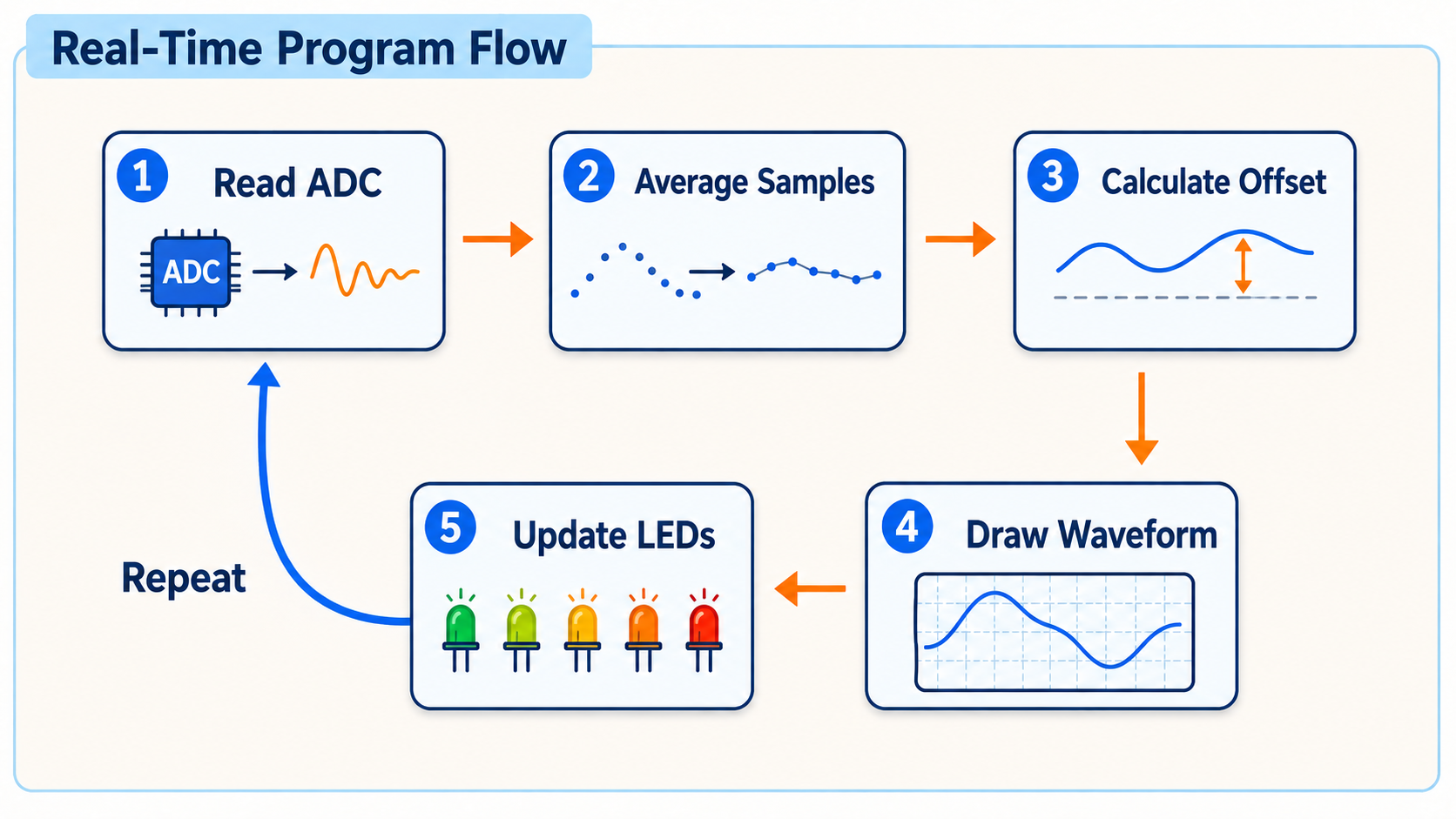 FIG. 05
One Loop Connects Measurement to Output
The visualizer does not capture an entire audio signal and process it afterward. Instead, the RP2040 repeatedly performs a short sequence of operations while the system is running.
Read new voltage samples from the ADC.
Average, centre, and scale the measured values.
Convert the processed value into waveform position and LED response.
Immediately return to the ADC and begin the next update cycle.
Three Operations Drive the Visualization
The program does more than transfer raw ADC values directly to the display. It establishes a centre reference, reduces small sample-to-sample variation, maps the signal into screen coordinates, and uses the same processed magnitude to control the LED response.
Read and Centre the ADC
The ADC reading is shifted around the expected midpoint so that positive and negative waveform movement can be represented as offsets around the display centre line.
Average and Scale
Four readings are averaged to reduce small random variations, then scaled to the available display height and constrained so the trace remains on-screen.
Draw the Waveform and Drive LEDs
The processed offset determines the next waveform position. Its absolute magnitude is also used as an approximate measure for the RGB LED response.
The Important Parts of the Program
The complete MicroPython project contains the ST7789 display driver, grid drawing, waveform update logic, ADC processing, and RGB LED behaviour.
For the article, only the signal-processing steps need to be
shown directly. The full tested project should be distributed
as a downloadable ZIP containing
main.py and st7789py.py.
spi = machine.SPI(
    1,
    baudrate=40_000_000,
    polarity=0,
    phase=0,
    sck=machine.Pin(10),
    mosi=machine.Pin(11),
    miso=machine.Pin(12),
)

adc = machine.ADC(28)
np = neopixel.NeoPixel(machine.Pin(23), 4)def read_centered():
return adc.read_u16() - 32768
def sample_pixel_offset():
raw = (
read_centered()
+ read_centered()
+ read_centered()
+ read_centered()
) >> 2
offset = (raw * (HALF_H - 4)) // 32768
return max(
-(HALF_H - 4),
min(HALF_H - 4, offset)
)offset = sample_pixel_offset()
curr_y = HALF_H - offset
update_leds(abs(offset))
display.vline(
x,
prev_y,
curr_y,
color
)The raw ADC value is not sent directly to the screen. The program first establishes a centre reference, reduces small variations through averaging, scales the result to the display geometry, and limits the value so that the trace cannot be drawn outside the screen.
The LED output represents approximate instantaneous signal magnitude, not calibrated sound pressure level. Larger waveform offsets produce a stronger visual response, but the result depends on the microphone frontend, ADC behaviour, software scaling, and the chosen LED mapping.
Assemble, Program, and Run the Complete System
The system can be built using the integrated project PCB supplied with the Fundamental EE Starter system or by connecting the individual modules directly. In both cases, the electrical signal path and RP2040 pin assignments remain the same.
What You Need
The project combines one analog input stage, one RP2040-based controller, a TFT display, and four addressable RGB LEDs.
A USB connection provides power and is also used to program the RP2040 from a computer.
Disconnect USB power while changing wiring. Confirm the supply voltage, ground connections, and module orientation before reconnecting the board.
Connect the Hardware
Begin with the TFT display, then connect the microphone frontend and WS2812 LEDs. All modules must share the appropriate ground reference.
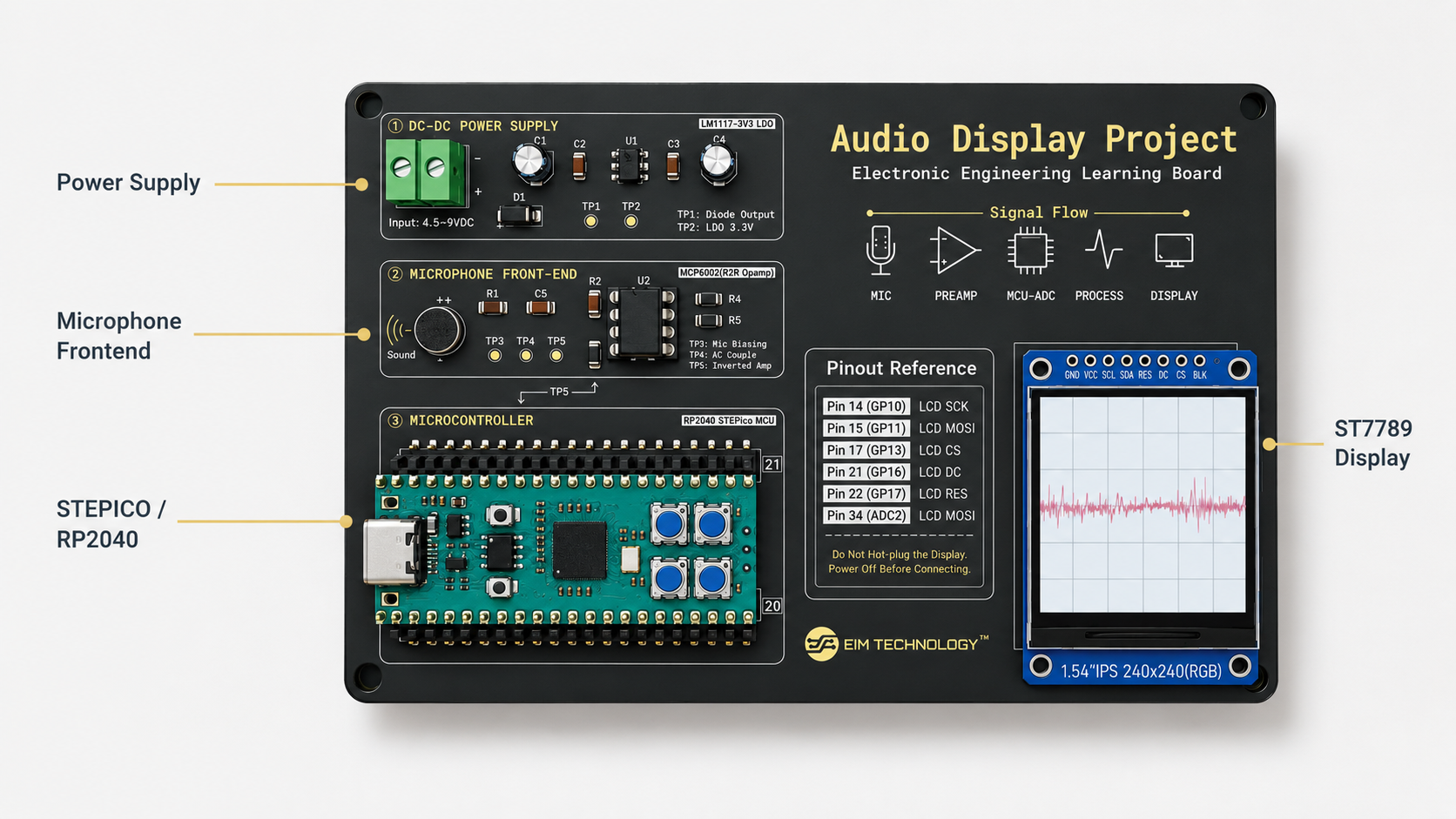 FIG. 06
The ST7789 display communicates with the RP2040 through SPI. The current program configures SPI at 40 MHz.
Connect USB power. The board should power normally, the display backlight should turn on, and no component should become unusually warm. Disconnect power immediately if the board resets repeatedly or any component heats up.
Prepare the MicroPython Program
Install the current MicroPython firmware on the RP2040, connect the board in Thonny, and upload the two tested project files to the device filesystem.
Select the correct MicroPython interpreter in Thonny and confirm that the RP2040 appears as the connected device.
Upload both project files to the microcontroller:
AudioVisualizer/
├── main.py
└── st7789py.py
 FIG. 07
If necessary, run a simple ADC test before starting the full visualizer. In a quiet environment the reading should remain near its bias level and change when you speak or clap near the microphone. A value fixed near the minimum or maximum usually indicates an input, power, or biasing problem.
Run the Complete System
With both files stored on the RP2040, run
main.py and verify that the waveform and RGB
response track changes in the incoming sound signal.
 FIG. 08
Start with normal speech approximately 20–40 cm from the microphone. The waveform should move away from the centre line while the LEDs respond to the approximate magnitude.
Next, try a short hand clap and then play music at a moderate volume.
Expect a relatively narrow trace and minimal LED response.
Expect an irregular moving waveform and stronger LED activity.
Expect a larger short-duration waveform response.
The display should refresh continuously, the waveform should react without an obvious long delay, and the LEDs should become more active as the signal grows. The exact waveform will vary with the microphone, room noise, sound source, and sensitivity setting.
A Working System Is the Beginning of the Experiment
A successful first run confirms that the hardware and software can operate together. The next step is to change one condition at a time, observe the response, compare the result, and identify which part of the system caused the change.
Making a system respond is only the first step. Testing whether it responds correctly is what turns a build into an experiment.
Compare Different Audio Inputs
Keep the microphone position and display sensitivity unchanged while testing several sound conditions. A controlled comparison makes it easier to determine whether the system is responding consistently to changes in the input signal.
Quiet Room
Expect a relatively narrow trace around the centre line, with only small variations caused by ambient sound and noise.
Normal Speech
The display should show a continuously changing irregular waveform with visibly greater amplitude than the quiet condition.
Hand Clap
A short, louder transient should produce a larger short-duration response on the display and stronger LED activity.
 FIG. 09
Compare the Visualization with the Analog Signal
For a stronger engineering comparison, probe the analog microphone output with an oscilloscope while the TFT visualizer is running.
The two displays should respond to the same changes in the input signal, but they will not look identical. The oscilloscope and the RP2040 visualization use different sampling behaviour, scaling, refresh timing, and timebase.
The purpose of this comparison is not to make both traces visually identical. It is to verify that the TFT response originates from a measurable electrical signal.
Adjust the Waveform Sensitivity
The apparent waveform height can be changed in software by modifying the scaling divisor. This changes the mapping from ADC data to screen coordinates; it does not increase the electrical microphone signal or improve ADC resolution.
Change the Digital Scale, Not the Analog Signal
The waveform size is controlled by the divisor used when converting the processed ADC value into a vertical screen offset.
Reducing the divisor makes the same electrical input appear larger on the display. If the sensitivity is increased too far, however, the trace repeatedly reaches the top and bottom limits and useful differences between louder signals are lost.
# Default
offset = (raw * (HALF_H - 4)) // 32768

# Higher display sensitivity
offset = (raw * (HALF_H - 4)) // 16384 FIG. 10
Adjust the LED Response Separately
The LED behaviour is derived from the processed signal magnitude, but its final brightness scaling is independent of the waveform calculation. This allows the visual comfort and power demand of the LEDs to be adjusted without changing the displayed signal.
Separate Signal Processing from Presentation
The number of controlled LEDs is defined by
LED_COUNT = 4. Final LED brightness can also be
reduced after the waveform magnitude has already been
calculated.
LED_COUNT = 4

# Reduce final LED brightness
brightness = brightness // 8Change One Variable at a Time
If waveform sensitivity, LED brightness, microphone position, and sound level are all changed simultaneously, it becomes difficult to determine which modification caused the observed result.
Keep the remaining variables fixed while changing one parameter, then compare the result before making the next adjustment.
Change one parameter at a time. Record what changed, what remained constant, and how the system responded. This makes the result interpretable rather than merely observable.
Troubleshooting the System
Use the observed symptom to narrow the fault to the display, project files, ADC input, analog frontend, LED connection, or software configuration.
main.py and
st7789py.py are stored on the device.
LED_COUNT.